A Mermaid diagram viewer in Slack: interactive HTML, not just a PNG
Big Mermaid diagrams are unreadable as a thumbnail. Here is how to view them properly from Slack, with pan and zoom, the source and every earlier version.
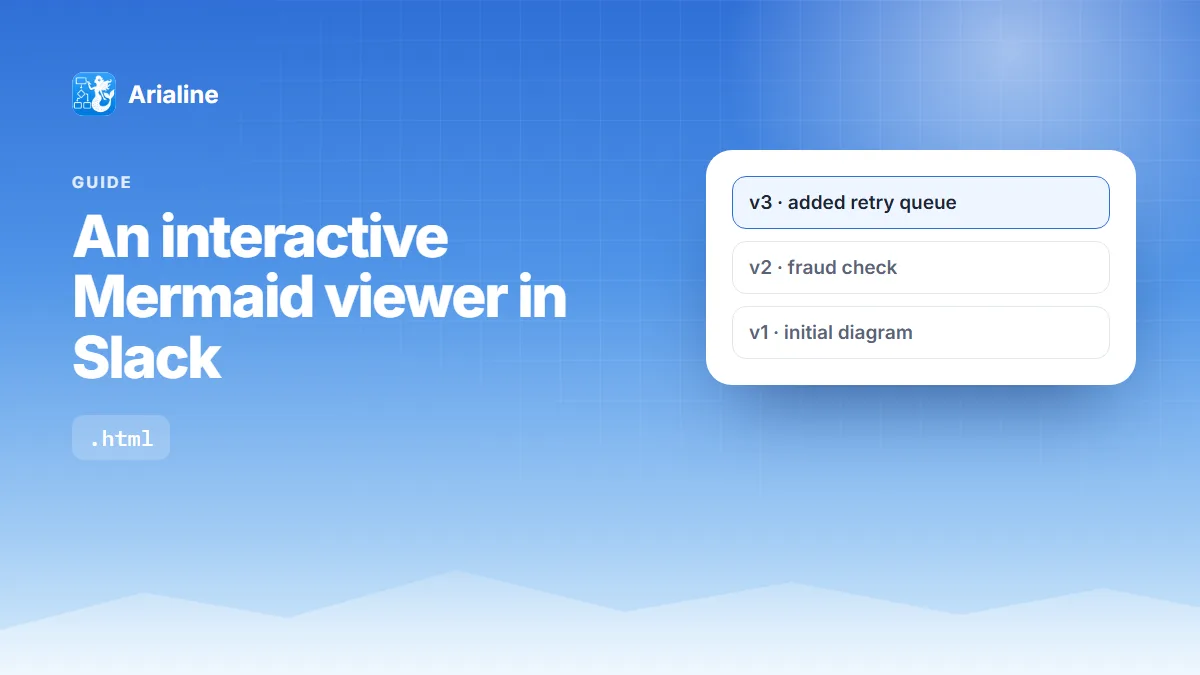
A 40-node flowchart squeezed into a Slack thumbnail is not a diagram anyone can review. You need to zoom, pan and check the source.
Direct answer: Arialine turns Mermaid into two files in Slack: a PNG preview for quick scanning and a self-contained interactive HTML viewer. Open the HTML file in any browser to pan and zoom, read the Mermaid source, step through earlier versions and see why each change was made. No login is needed to open it.
What the viewer shows
- The diagram, rendered from the stored Mermaid, with pan, zoom and fit-to-screen.
- Source, ready to copy.
- History: every version of the board, with author, date and change summary.
- Decisions: the Slack messages behind each change (they open in Slack for people who have access).
How to get it
- Type
/arialineand paste Mermaid, or share a.mmdfile, or mention@arialine. - Arialine posts the board with the PNG and the
.htmlfile. - Click the HTML file, download it or share it outside Slack; it works offline.
Every new version gets a fresh viewer file, and the board message always carries the latest one.
Also available
- Export
.mmd, PNG or SVG from the board's Export menu. - Create a PDF report of one or up to ten versions.
- Put the diagram on a Slack Canvas with Place on canvas.
See interactive HTML diagrams in Slack for a demo, or how to create Mermaid diagrams in Slack to start.

Try it in context
Bring Arialine into your Slack
Paste a large Mermaid diagram into /arialine and open the HTML file.
 Add to my Slack