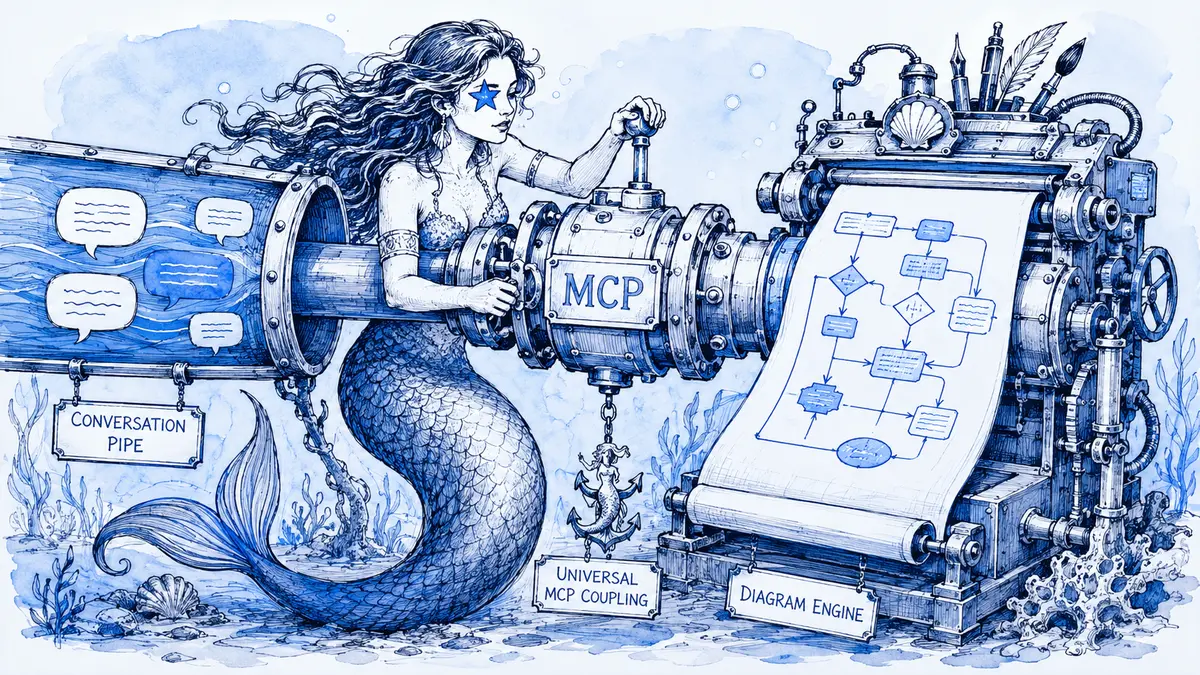
Slackbot can call tools from a connected diagram app through the Model Context Protocol (MCP). Slackbot interprets the request and selects a tool; the app performs the operation and returns a result. MCP makes tools discoverable and callable, but it does not check whether a generated diagram matches the source discussion. Review the diagram against the actual messages before treating it as architecture or a team decision. The MCP tools specification describes the tool-call layer.
To use this workflow: install an app that exposes an MCP server, complete any workspace approval, connect that app from Slackbot's Apps menu, and authorize the tool calls you want it to make. Then give Slackbot a specific channel thread and diagram goal. Slackbot access and usage limits vary by Slack plan.
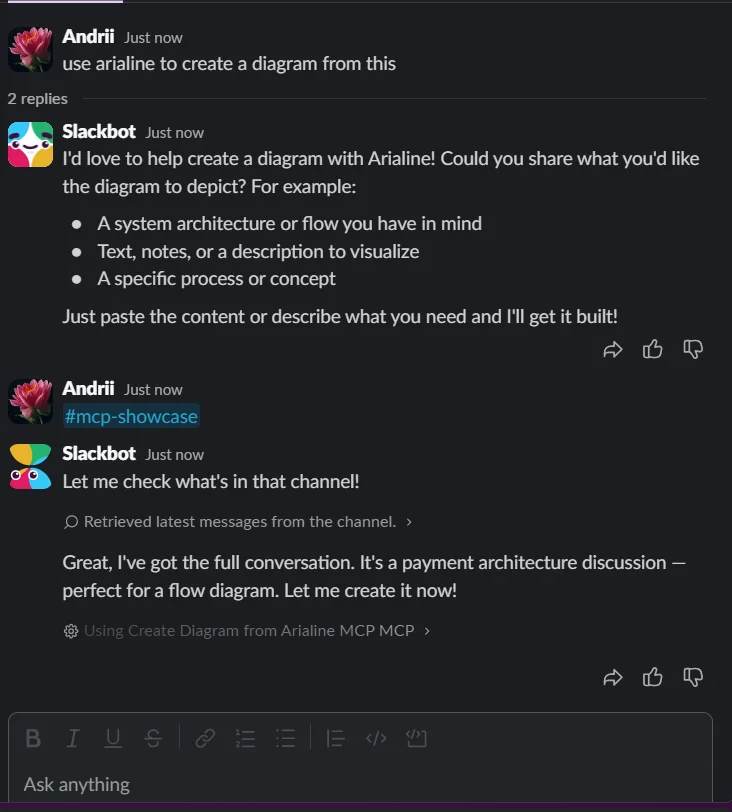
Example UI: Slackbot retrieves messages from #mcp-showcase, then starts Arialine's Create Diagram tool.
Slack MCP can describe two different connections
Slack supports both directions:
| Connection | What it does |
|---|---|
| Slackbot as an MCP client | Slackbot calls tools from an installed app, such as a diagram app. This is the workflow in this article. |
| Slack as an MCP server | An external AI assistant connects to Slack tools to search or act on Slack content. |
These directions have different permissions and setup. Slack's MCP overview explains both. Here, Slackbot is the client and Arialine is the app server.
What happens from prompt to diagram
| Stage | What happens | What the user should verify |
|---|---|---|
| Request | The user names a diagram type, goal, and source conversation. | The source is the intended channel or thread, not an ambiguous topic. |
| Tool selection | Slackbot discovers the connected app's available tools and chooses one. | The selected operation is read-only, a proposal, or a change that will publish. |
| App operation | The server authenticates Slackbot’s request, resolves the workspace, then validates, renders, or stores the operation under its own rules. | A successful response means the operation ran; it does not prove the model interpreted the conversation correctly. |
| Review | Slackbot returns a result and the app may post a board or proposal in Slack. | Check each node, arrow, label, and assumption against the source messages. |
A connected app controls what its own tools do. For example, one tool may look up a board while another creates or changes one. The MCP protocol does not supply the app's business rules or make its output correct.
Connect a diagram app to Slackbot
1. Install the app and review its MCP server
For an existing app, install it from Slack's app directory or use the app's installation link. If your workspace requires app approval, an admin reviews the app's permissions and declared MCP server before members can connect it.
For an app you are building, Slack's developer setup guide describes how to declare a remote MCP server in App Settings or the app manifest. The app requires the mcp:connect scope. Adding an MCP server through App Settings adds that scope automatically.
Slack's admin approval guide explains how an admin can allow or restrict declared servers. Org admins on Enterprise Grid and Enterprise+ can manage access by MCP server and by tool type or individual tool; Slack's current connection guide says these fine-grained controls are unavailable on Pro, Business+, and Enterprise Select. This restriction applies to server and tool access management; Slackbot access and usage limits still depend on the subscription and workspace settings.
2. Connect your account in Slackbot
Open a Slackbot direct message, choose Apps, and add the installed app. If the app requires OAuth, complete its sign-in step. Slackbot supports up to five active MCP servers per user. You can ask Slackbot which tools it can use, or check the app's Manage view to inspect the listed tools and permissions. See Slack's step-by-step connection guide.
For third-party tools, Slack prompts the member to authorize each tool call, including read and write calls. The choices are Allow once, Always allow, and Deny. Always allow permits future calls to that tool without asking again; it is not a review of the diagram the tool produces. Keep tool permissions narrow, especially when a server can publish or change artifacts.
3. Check plan access before designing the workflow
Slack lists MCP app connections across subscriptions, while Slackbot availability and message limits depend on the subscription and workspace settings. Check Slackbot's current limits and the Slackbot MCP plan guide before promising the workflow to every member.
Arialine has separate limits. Its current plans give Free workspaces up to 3 boards, 8 versions per board, and 10 AI generations per workspace per UTC day; Team removes those caps. A request counts against the AI allowance only when it reaches a model, so valid pasted Mermaid can render without using a generation, while natural-language creation or edits that call AI do use one. Model-free actions such as reading history or exporting an existing board do not. A Slackbot allowance and an Arialine allowance are separate checks.
4. Test tool discovery, then make a low-risk request
Before asking for a diagram, check that Slackbot can see the app and its tools. Start with a source that is safe to use and a request whose result a person can verify. If Slackbot cannot see the app, check the app installation, admin approval, server connection, and mcp:connect scope against Slack's troubleshooting steps.
Ask for a source-grounded draft
This request makes the source and unknowns explicit:
Use only the reply thread linked in #payments-design for this diagram.
Draft a sequence diagram for the checkout timeout path.
Separate details stated in the thread from assumptions.
If the retry count, timeout value, or recovery behavior is not stated, label it unknown and ask me rather than filling it in.
Show me the draft before calling any tool that creates or changes a board.
Then compare the draft with the messages. Check whether every component exists, whether arrows point in the right direction, and whether a stated retry or timeout is being confused with an inference. If Slackbot cannot identify the exact messages it used, open the source thread yourself and verify it.
For a new Arialine board, confirm a target channel you can open in Slack and an approved diagram before asking Slackbot to create it. The create_diagram tool acts on your request and posts the rendered board in that channel; Arialine must also be a member there. For an existing board, ask for a proposal explicitly when you want a review step:
Use propose_edit on the existing checkout-flow board.
Add the timeout path from the linked thread as a proposal only.
Do not apply it.
The board's thread is the place to inspect the proposal and its result. For a non-Slackbot path, Arialine also supports direct Slack requests; see how to create a Mermaid diagram in Slack.
What Arialine's MCP tools add
The current Arialine MCP service exposes 14 tools: list_diagrams, get_diagram, get_history, search_decisions, explain_element, preview_export, create_diagram, apply_edit, propose_edit, revert, undo, branch, export, and place. Slackbot explores alternatives itself; in Slack, @Arialine brainstorm still works. These tools let Slackbot work with persistent boards instead of returning only Mermaid text in its reply.
| Task | Example Arialine capability | What it does |
|---|---|---|
| Inspect a board | Read its Mermaid source, versions, or decision history. | Helps a reviewer compare a proposed change with the current diagram and recorded changes. |
| Create or edit | Create a board from a plain-language description, apply an edit, or post an explicit proposal. | A proposal stays pending until a person applies it; a direct edit posts a new version. |
| Explore alternatives | Branch from a version, undo a change, or revert to an earlier version. | Branching leaves the original board in place; undo and revert add history rather than erasing it. |
| Share | Export the diagram or place it on a Slack Canvas. | Use an export or Canvas when the reader needs a portable copy or a separate Slack surface. |
Slack's MCP requests can include caller and workspace IDs in _meta.slack, but the field is request data: Slack’s signed-identity guidance says a server must verify the request signature before trusting it. Arialine verifies the signature before trusting _meta.slack on tool calls; its endpoint permits unsigned initialize, notifications/initialized, and tools/list discovery requests, which do not identify an authenticated user.
Every Arialine MCP tool acts as the requesting Slack member. It can see or change only boards in channels that person can open in Slack. A board in a channel the person cannot open appears not to exist to the tools. This access rule applies to board reads and changes alike, including creating a board, inspecting history, editing, proposing changes, undoing, reverting, branching, and placing a diagram.
The same requester-based channel access applies to every tool, including preview_export and export. Slack's app, server, and tool controls can further restrict who may call a server or tool; they do not let a caller access a board in a channel the caller cannot open. This rule governs access to Arialine boards, not Slackbot's separate Slack-message context. Have an administrator review Arialine’s data handling and admin guidance before enabling the integration.
Arialine treats Mermaid source differently from a plain-language request: when create_diagram receives valid Mermaid source, it renders that source without asking AI to redraw it. A plain-language description follows the AI diagram-creation path. If exact labels or structure matter, send the Mermaid source and inspect the render before sharing it.
There is an important review boundary. The channel's Proposal or Direct setting governs apply_edit; propose_edit posts an explicit review card. Proposal mode is not a global gate for MCP actions: create_diagram and branch can publish new boards without checking the channel edit mode; undo and revert can add versions to an existing board without that check. Treat these as distinct operations. Do not treat Slackbot's Allow once prompt or a channel's Proposal setting as approval for every tool side effect. Check what the selected tool will publish or change, and inspect board History after a change. The separate diagram review workflow explains how to review changes in context.
A board's history can show its versions and change context, but an MCP request should not be assumed to create a message-by-message evidence trail for every Slack post Slackbot read. Keep the original thread link available and check the messages that support an important edge or decision. History helps explain what changed; it does not certify that the discussion reached agreement.
When to use this workflow
Use Slackbot with an MCP-connected diagram app when the request needs a tool to create, update, or share a persistent diagram. Use a direct Mermaid workflow when you only need source that a person can paste and render. A spatial whiteboard may fit a workshop better; the trade-offs are different from a text-based diagram, as explained in Mermaid versus visual whiteboards in Slack.
If Slackbot is unavailable or its usage limit is exhausted, that does not prevent all Slack diagramming. Use Arialine's direct Slack workflow instead, or create Mermaid source manually and render it in a compatible viewer.
FAQ
Does MCP create the diagram?
MCP carries tool discovery and calls between Slackbot and the connected app. Slackbot selects the tool, while the app implements its behavior. A diagram appears only if the app has a tool that creates or renders one.
Does connecting an MCP app let Slackbot read every channel?
Not by itself. Slackbot's Slack-message context and an app's tools are separate access surfaces. Every Arialine MCP tool acts as the requesting Slack member and can see or change only boards in channels that person can open; a board outside that access appears not to exist. Connecting Arialine does not grant its MCP tools general access to all Slack messages. Slack admins can restrict MCP server and tool access through the MCP admin guide.
Does Slackbot approval mean a diagram edit was reviewed?
No. Slack's Allow once or Always allow choice controls whether Slackbot may call a third-party tool. It does not check whether a diagram is correct or whether the team's review requirements were met. In Arialine, tool behavior and the channel's Proposal or Direct setting are separate concerns, and not every MCP action follows that setting.

 Add to my Slack