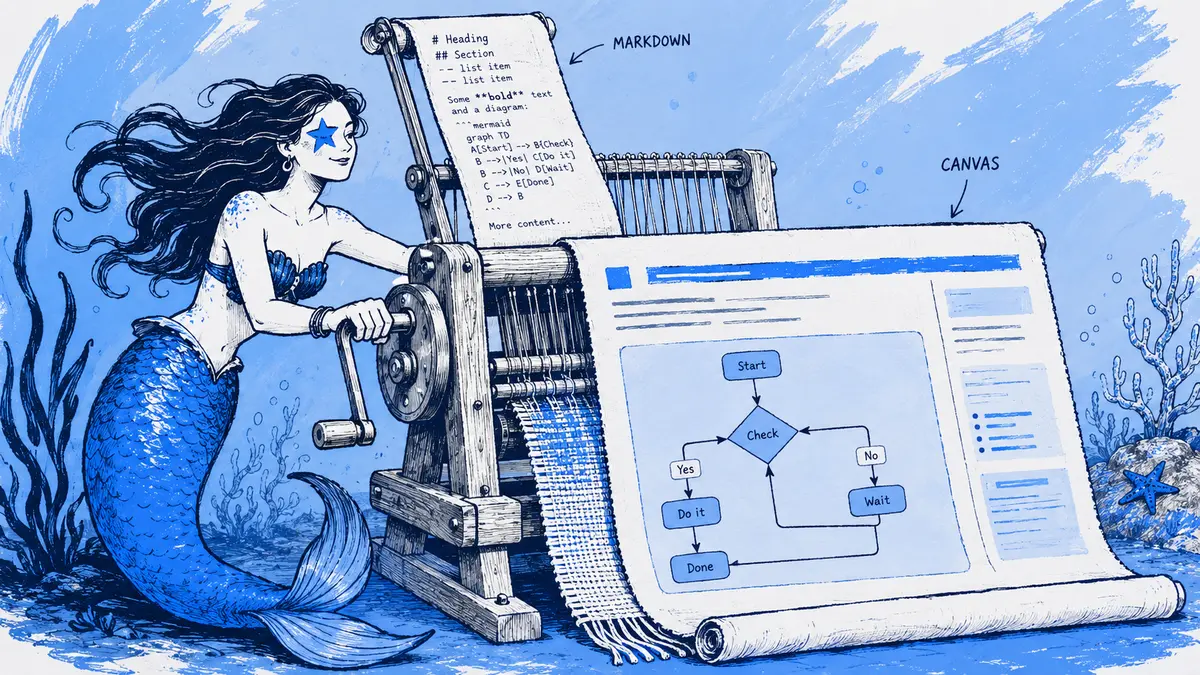
A Mermaid design note can be readable in its repository but hard to review from a Slack file share: sharing the .md file does not by itself put its text in a Canvas or turn its Mermaid source into a diagram image. A useful conversion keeps the supported text in the Canvas and renders only the diagram block.
Direct answer: Slack Canvas accepts a documented subset of Markdown, including headings, lists, tables, links, and code blocks, but Slack does not document Mermaid rendering in Canvas. Arialine can render fenced
mermaidormmdblocks as PNG images and send the remaining Markdown to a Canvas. The PNG is a snapshot; keep the original Markdown file as the editable source.
Check your Slack plan first. The converter creates a standalone Canvas: Arialine calls Slack's canvases.create without a channel_id. Slack requires channel_id for Free teams and documents the free_teams_cannot_create_standalone_canvases error, so this automated route cannot create its result on Slack Free. A Free workspace can still use a Canvas tab in a channel: as a manual fallback, paste the supported text into that Canvas and attach a Mermaid PNG rendered separately. That copy will not sync with the .md source or use Arialine's Markdown converter. Slack's Canvas overview describes channel Canvases across plans.
What the conversion changes
Slack's Canvas API documentation lists supported Markdown elements such as headings H1–H3, checklists, tables, links, and code blocks. It does not list Mermaid as a Canvas element, so a Mermaid fence is not a native diagram object. Arialine performs the rendering step before it creates the Canvas.
| Markdown in the source | Result in the Canvas | What to check |
|---|---|---|
| Paragraphs, links, lists, and checklists | Canvas text and formatting | Follow links as a reader with the intended access. |
| H1–H3 headings | Canvas headings | Slack documents heading levels through H3. Arialine reduces H4–H6 headings to H3. |
| Markdown table | Canvas table | Slack's limit is 300 cells per table. If a large table is rejected, Arialine's fallback divides it into smaller tables; check that the repeated headers and grouping still make sense. |
Ordinary fenced code, such as python |
A Canvas code block | It remains code; it is not interpreted as a diagram. |
A fenced mermaid or mmd block |
An embedded PNG image | The image is not editable Mermaid source. If rendering or image upload fails, the original fence remains in the Canvas. |
Slack also documents a 1 MiB limit for Markdown in a Canvas document_content object. A very large file can therefore fail at Canvas creation even if its diagrams render. Arialine automatically retries with simpler Markdown variants when Slack rejects a document.
Try a small Markdown file
Save this as checkout.md:
# Checkout review

## Request path

```mermaid
flowchart LR
  Web --> API
  API --> Payment
  Payment -- timeout --> Retry[(Retry queue)]
```

## Review questions

- [ ] What happens when payment times out?
- [ ] Who owns retry handling?

| Risk | Owner |
| --- | --- |
| Duplicate webhook | Payments |

```python
# This is code, not a Mermaid diagram.
retry_limit = 3
```
The expected result is a Canvas with native headings, checklist, table, and Python code block, plus an image for the flowchart. Arialine recognizes fenced Mermaid blocks whether the fence uses backticks or tildes; the language label can be mermaid or mmd. Text that merely contains Mermaid syntax without a recognized fence is not converted by this Markdown-file path.
Convert the file in Slack
- Install Arialine in the workspace and invite it to the channel where you will share the file.
- Share
checkout.mdin that channel. If automatic Markdown rendering is enabled, Arialine creates the Canvas; it is on by default. To run it manually, use the file message's Render as canvas shortcut. - Open the Canvas and compare it with the source. Confirm that the flowchart shows the timeout path, the table still associates each risk with its owner, and non-Mermaid code remains readable.
The global Markdown to canvas shortcut in Slack's shortcut menu submits a file and sends its Canvas link to you by DM. The /arialine md auto on|off and /arialine md thread|new commands apply to .md files shared in the current channel: the first controls automatic conversion, and the second chooses whether the resulting link appears in the file's thread or as a new channel message. They do not change the global shortcut's DM delivery.
Check the image, access, and source of truth
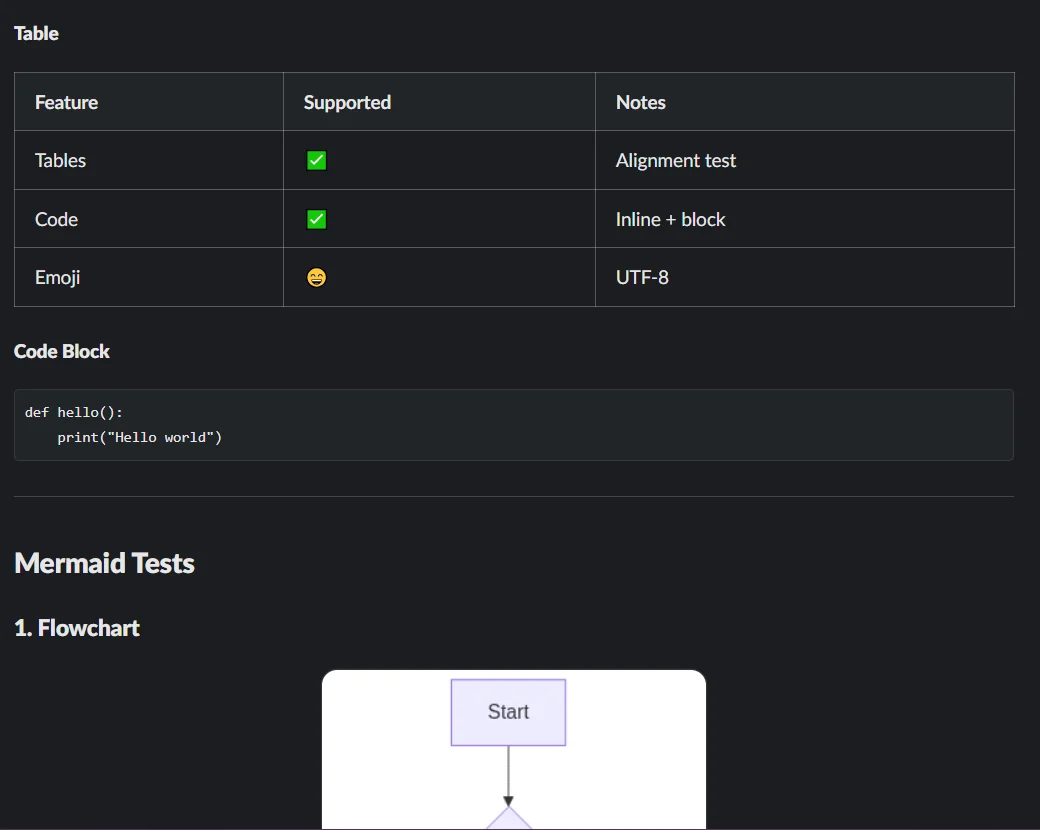
A converted diagram is a PNG, not an editable Canvas diagram. Arialine gives the image a generic label such as “Checkout review diagram 1”; that names the image but does not explain its flow. The W3C's guidance for complex diagrams recommends a text equivalent for the essential information in a flowchart. Add an explanation in the Markdown next to the fence—such as “A checkout request flows from Web through API to Payment; if Payment times out, it goes to the Retry queue”—so the Canvas retains that statement as text after the fence becomes an image. For a complex flow, describe the important branches in enough detail for a reader who cannot see the PNG.
Keep the original .md file in the place your team uses for source and revision history, such as its repository. Editing the Canvas does not change that file, and editing the file does not refresh the Canvas. When the source changes, render it again and tell reviewers which copy is current. If the Canvas contains edits that should become authoritative, copy those edits back into the source before the next conversion.
Check permissions from another intended reader's account. The Canvas and uploaded image must both be visible to the people expected to review them; a link to a private repository or Slack conversation still requires access to that destination. Do not treat a successful upload as proof that every reviewer can open every embedded resource.
When a Canvas is the wrong output
A Canvas works well as a Slack reading copy for a proposal or review. It is a poor source of truth when readers must edit the Mermaid or when changes need to stay synchronized with a repository. Keep the diagram in Mermaid-capable Markdown for review there, or use a versioned board if the team needs to revise one diagram through conversation. GitHub renders Mermaid in supported Markdown contexts; the Mermaid syntax reference helps validate the source independently.
For a full guide to what belongs in a Canvas versus an editable diagram, see Slack Canvas for technical diagrams. If a diagram fails to appear, use the Mermaid troubleshooting guide. The Markdown-to-Canvas workflow shows where this conversion fits in Arialine.
FAQ
Does Slack render a Mermaid code fence in Canvas by itself?
Slack documents code blocks in Canvas Markdown, but its Canvas documentation does not list a Mermaid renderer. Without a separate conversion step, treat a Mermaid fence as code rather than a rendered diagram.
Can I edit the Mermaid by clicking the Canvas image?
No. The image is a static PNG. Edit the original Markdown and convert it again, or keep a separate editable diagram as the source.
What happens if one Mermaid block has invalid syntax?
If the Mermaid syntax is invalid, correct the block and retry. If rendering succeeds but the image upload fails, confirm Arialine can upload files in that channel and try again. For the separate editable-board workflow, see how to create and edit Mermaid diagrams in Slack.

 Add to my Slack