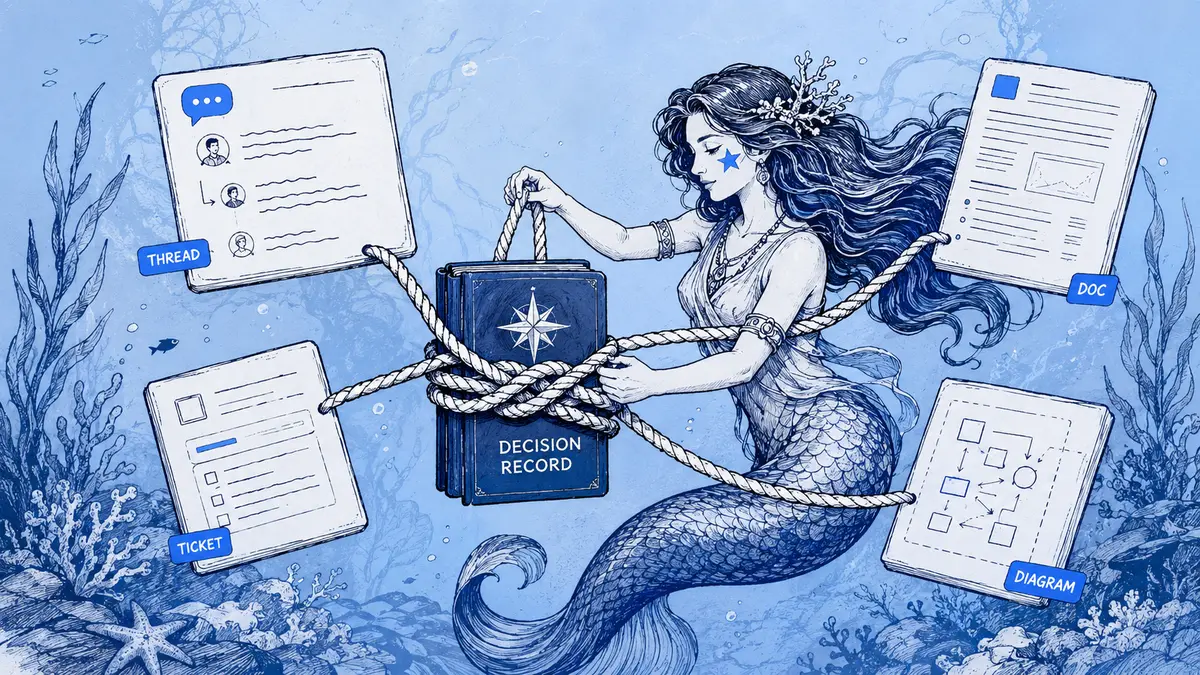
A Slack thread can explain why a team opened a work item, but a link alone may not tell the next engineer what the team decided. The useful pattern is to keep each system responsible for a clear part of the record.
Direct answer: use Slack for the discussion, Jira or Linear for assigned work, and Confluence or an ADR for durable decision rationale. Put the accepted outcome, owner, status, and exact diagram version in the record people will use. Add a Slack link for context; sync thread replies only when the copied discussion is relevant and every issue reader is allowed to see it.
Give each record one job
These records can link to each other without carrying identical copies of the whole conversation.
| Record | Keep here | What the link should help a reader answer |
|---|---|---|
| Slack thread | Questions, options, evidence, and discussion | What did people consider, and where did the conversation happen? |
| Jira or Linear issue | Scope, owner, acceptance criteria, delivery status | What work remains, and how will the team verify it? |
| Confluence page or ADR | Accepted decision, rationale, alternatives, consequences, and review state | Why was this option chosen, and what constraints does it create? |
| Architecture diagram | Components, boundaries, and flows for a named state | What structure is proposed, accepted as the target, or verified as deployed? |
An issue can link to a discussion and a decision record, but it should still state the requirement that an implementer must meet. A diagram can make a decision easier to understand, but it does not establish who accepted it or whether implementation shipped. For a decision that affects architecture, see the architecture decision capture workflow.
What Jira, Linear, and Confluence carry from Slack
The native integrations do different things. Check their setup and permissions in the current vendor documentation before relying on a particular action.
| Need | Use | What the Slack integration carries |
|---|---|---|
| Create a tracked task and optionally keep its discussion attached | Jira Cloud | Create a work item from a Slack message, open a current link preview, and optionally sync thread replies to work-item comments. Atlassian’s create and update guide and thread-sync instructions describe the flow. |
| Create an issue and continue a discussion across the tracker and Slack | Linear | Create an issue from a Slack message, link a message to an existing issue, or sync comments in both directions. Linear’s Slack integration guide documents the available actions. |
| Keep a design record and notify a Slack channel about page changes | Confluence Cloud | Preview Confluence pages and comments in Slack, subscribe a channel to page or space notifications, and react to some previewed content. Atlassian’s Confluence and Slack guide documents those features. |
Jira Cloud: create a work item and check its sync state
Hover over the Slack message and choose More actions → Create work item from Jira Cloud. You can also use the /jira create command and enter the issue details. Creating a single work item with the Jira app in a thread automatically syncs that thread to Jira; creating multiple work items at once in the same thread does not enable sync by default. Check the resulting thread state instead of assuming creation was link-only. When a thread is synced, Jira copies earlier replies as comments and keeps adding new replies. If the preview offers Sync with thread, use it only after reviewing the entire thread and confirming the issue readers may see every reply. If a thread is already syncing, choose Unsync thread to stop future copies; comments already added to Jira remain.
Linear: create an issue, then choose link-only or synced discussion
On a Slack message, choose More actions → Connect to apps → Create new issue. Only Linear users in your Slack workspace can create issues through this integration; Linear documents this access requirement. If the Linear app is available in that channel, choose to create a synced thread when the issue needs a continuing conversation; verify that sync is active after creation. Otherwise, Linear can create the issue without thread sync. When syncing is active, comments stay in sync between Slack and Linear, and Linear updates the Slack thread when the issue is completed, canceled, or marked as a duplicate. If you choose Link existing issue or attach only the Slack URL in Linear, that creates a reference without starting comment sync. Synced threads are unavailable in DMs; invite the Linear app to a private channel before using its sync there.
Confluence Cloud: keep the decision on the page
Add the Slack discussion link to the Confluence page as supporting context, then write the accepted decision, status, rationale, owner, and consequences on the page itself. To subscribe a Slack channel to updates for a page or space, run /confluence connect <page-or-space-url> in the intended Slack channel, as Atlassian’s subscription instructions explain. A subscription created from Slack starts with all available event triggers enabled by default; review it with /confluence list and edit the triggers to match what the channel should receive. For space notifications, Atlassian requires the Chat Notification user to be included in the space permissions; if a subscription exists but notifications do not arrive, check that permission in Atlassian’s space-notification instructions. Slack can preview Confluence pages and comments, but restricted Confluence content does not appear in previews; notifications are withheld when content is restricted for both viewing and editing.
Choose a link, a summary, or thread sync
Use a link only when the thread is useful provenance but the issue does not need the discussion copied into it. This is often the safer choice when the thread contains exploratory debate, unrelated replies, or information with a narrower audience.
Use a short summary plus link when readers need the result but should not have to infer it from the discussion. State whether the outcome is proposed or accepted, who owns the decision, what changes, and where the rationale lives. If the decision is still open, say so instead of writing the ticket as a commitment.
Use thread sync when ongoing replies are part of the work item and belong in its comment history. Before syncing, read the earlier messages as well as the latest reply: the Jira integration copies the earlier replies too. Confirm that project or issue access permits every person who can read the destination to see the copied content. With Linear, invite the app into a private channel when needed, and do not expect thread sync to work in a DM.
A Slack link does not grant access to a private channel or DM. Slack’s message visibility guide explains who can read each conversation. When sharing a link to a private-channel or DM message, Slack offers Show message or Only show link; its forwarding instructions explain the difference. Check the message and destination audience before choosing to show the content.
Move the accepted outcome into the right record
- Classify the thread. Is it a question, an implementation request, a decision that constrains other teams, or more than one of these? Keep proposed and accepted states distinct.
- Choose the canonical destination. Put assignment and acceptance criteria in Jira or Linear. Put lasting rationale and alternatives in Confluence or an ADR when the issue does not capture them clearly.
- Select link or sync deliberately. Compare the source thread’s audience with the destination’s readers. If the whole thread is not appropriate to copy, link it and write a safe summary instead.
- Write the result so it stands alone. Include the affected components, decision owner, status, rationale that can be shared, implementation owner, acceptance criteria, and open risks. Label the Slack URL as discussion or evidence.
- Reference the diagram revision and check the chain. Name the exact version that illustrates the accepted target. After delivery, verify implementation against the relevant environment and revision before calling the diagram deployed.
A usable work item can follow this compact pattern:
Outcome and status: <proposed, accepted, rejected, or superseded>
Change: <the behavior or boundary that will change>
Owner and acceptance criteria: <who will implement it and what proves completion>
Decision record: <Confluence page or ADR, if separate>
Slack discussion: <thread link; note whether replies are synced>
Diagram: <name and exact version; target or deployed state>
Open risks: <questions that remain unresolved>
For a fuller decision record, use the decision-ledger guide. If the diagram is part of a design review, the architecture review workflow shows where the review artifact fits.
Example: track a retry-queue decision without copying every reply
For example, a team discusses retry behavior for a Billing-to-Notifications event in Slack. The thread compares synchronous retries with a queue, and one reply includes a customer-specific payload detail.
After the decision owner accepts the queue design, the team creates an implementation issue with the selected behavior, owner, retry acceptance criteria, and a link to the Slack discussion. If a Confluence ADR holds the alternatives and failure-mode analysis, the issue links that page too. The diagram reference names the precise version showing the accepted event boundary.
If every old and new Slack reply is suitable for issue readers, the team can enable the tracker’s thread sync. If not, it should keep only the link and copy a sanitized outcome into the issue and decision record. The sensitive payload stays in its approved restricted system. A future reader can understand the work without access to the original conversation, while authorized maintainers can still follow the source link.
Where Arialine fits
Arialine can keep a Mermaid diagram beside its Slack discussion, retain board versions, and link changes to their source messages when that evidence is captured. It exports Mermaid source, PNG, SVG, and PDF; a PDF can include up to ten selected versions. The product does not create Jira or Linear work items or synchronize comments with Jira, Linear, or Confluence. A person still copies the accepted outcome and adds the cross-system links.
Use Arialine when the team wants to update the diagram in Slack and preserve its revision trail. Keep the tracker responsible for assigned work and keep Confluence, an ADR, or the team’s established design system responsible for the decision itself. A diagram version is useful evidence of what changed; it is not proof of formal approval or deployment. See how to export diagrams from Slack for portable formats.
FAQ
Should I sync the whole Slack thread to Jira?
Only when all current and earlier replies belong in the issue’s history and are appropriate for its readers. Jira thread sync includes previous replies and continues with new ones. If you unsync later, comments already copied stay on the Jira work item.
Does adding a Slack link to a Linear issue sync the conversation?
No. Linear documents message linking and synced threads as separate actions. A synced thread carries comments between Slack and Linear; attaching a Slack message URL to an issue provides a reference without creating that sync.
Can Confluence show a Slack thread as a page preview?
Confluence can render some Slack links as Smart Links, but a rich preview is not guaranteed for every thread URL. Atlassian lists Slack among the apps that support Smart Links and notes that some URL types may not convert to embeds; readers may also need to be signed in to Slack and have access to the linked conversation. Paste the thread URL and check the resolved view. If it stays a URL or inline link, keep it as a source reference and write the decision on the Confluence page itself. This is separate from the Confluence–Slack integration described above, which previews Confluence content in Slack.
What should the ticket say if the architecture choice is not final?
Mark it proposed, identify who owns the decision, list what remains to be evaluated, and avoid writing implementation criteria that assume one option already won. Update the status and diagram reference after the decision owner accepts a direction.

 Add to my Slack